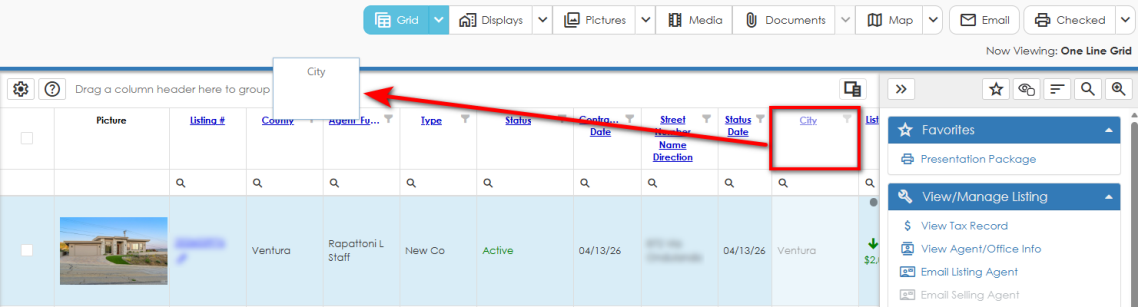
The grid display allows you to manipulate how listings are viewed by grouping listings in categories, moving columns, and hiding columns.
Grouping
Drag a column header to the designated area to group by that field. The page will automatically refresh with listings grouped by the selected field. For example, if you group by Status, listings will be organized under separate groups for Active, Sold, and so forth.
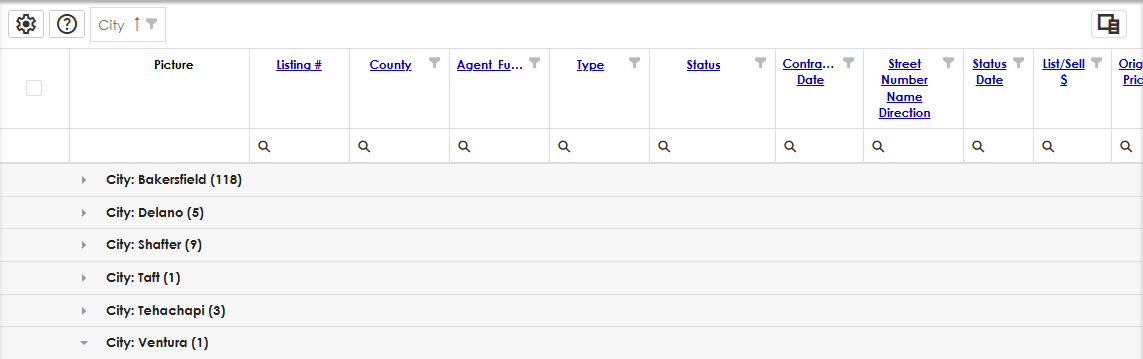
You may apply grouping for any desired fields by dragging multiple column headers to the designated area. Listings will then be organized in distinct groups for each combination of values contained by the selected fields. You can also click the column header in the grouping section to switch between ascending and descending order.
Note that it is not possible to group by free-form fields such as Price or Marketing Remarks because these fields contain unique values for individual listings. Also, it is not possible to group by amenities that accept multiple values for an individual listing. Grouping is available only for fields that contain a single value that conforms to standardized data such as Status, City, or Baths.
When using Sort Options together with grouping, the selected Sort Options will be applied within each individual group. For example, if you group by City and then sort by Price, listings will be arranged in individual groups based on City, and within each individual group the listings will be sorted based on Price. This also applies to the Sort By drop-down options.
Please note that when using grouping with the Sort as Selected feature, grouping will take precedence.
To ungroup columns, users can right-click the column name in the display header and select either the Ungroup or Ungroup All option.
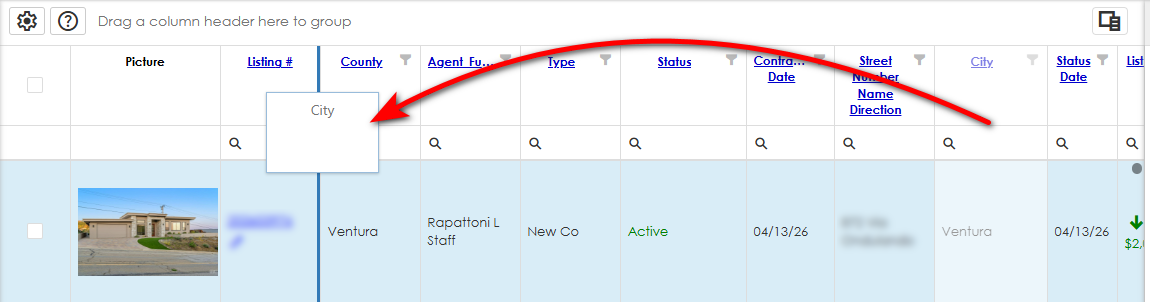
Most columns in the grid display can be rearranged by dragging and dropping them in their desired location, allowing for easy, on-the-fly customization.
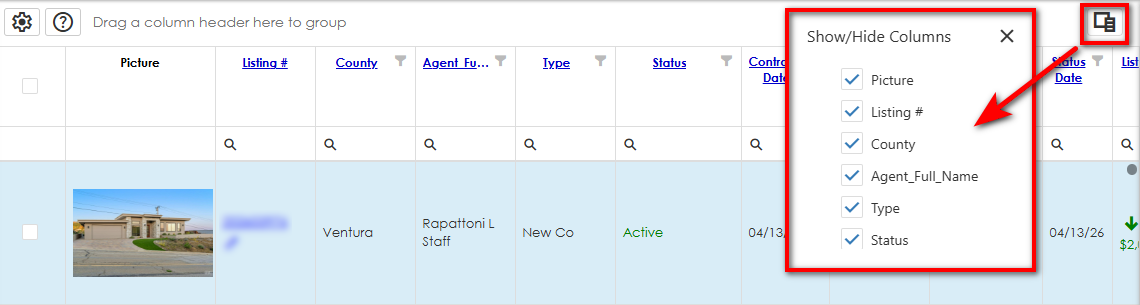
Columns in the grid display can be hidden from view. Simply click the Show/Hide Columns button and uncheck any columns that you want hidden. Recheck the columns to display any hidden columns.
TIP:  View the video tutorials under the "Search Results Displays" section on the Learning Center for a quick overview of this feature. The Learning Center can also be accessed directly from the Help menu.